
Office · Floor plans
Rooms draw themselves.
Press Auto-draw and every numbered room on the floor plan is outlined, ready to accept.
How it works
It reads the room numbers printed on the plan and traces each room out to its walls. No AI involved.
What's new · Praxon 1.4
Almost everything here started with something a crew ran into on a real job.
Office · Floor plans
Press Auto-draw and every numbered room on the floor plan is outlined, ready to accept.
It reads the room numbers printed on the plan and traces each room out to its walls. No AI involved.
Everyone · Rooms
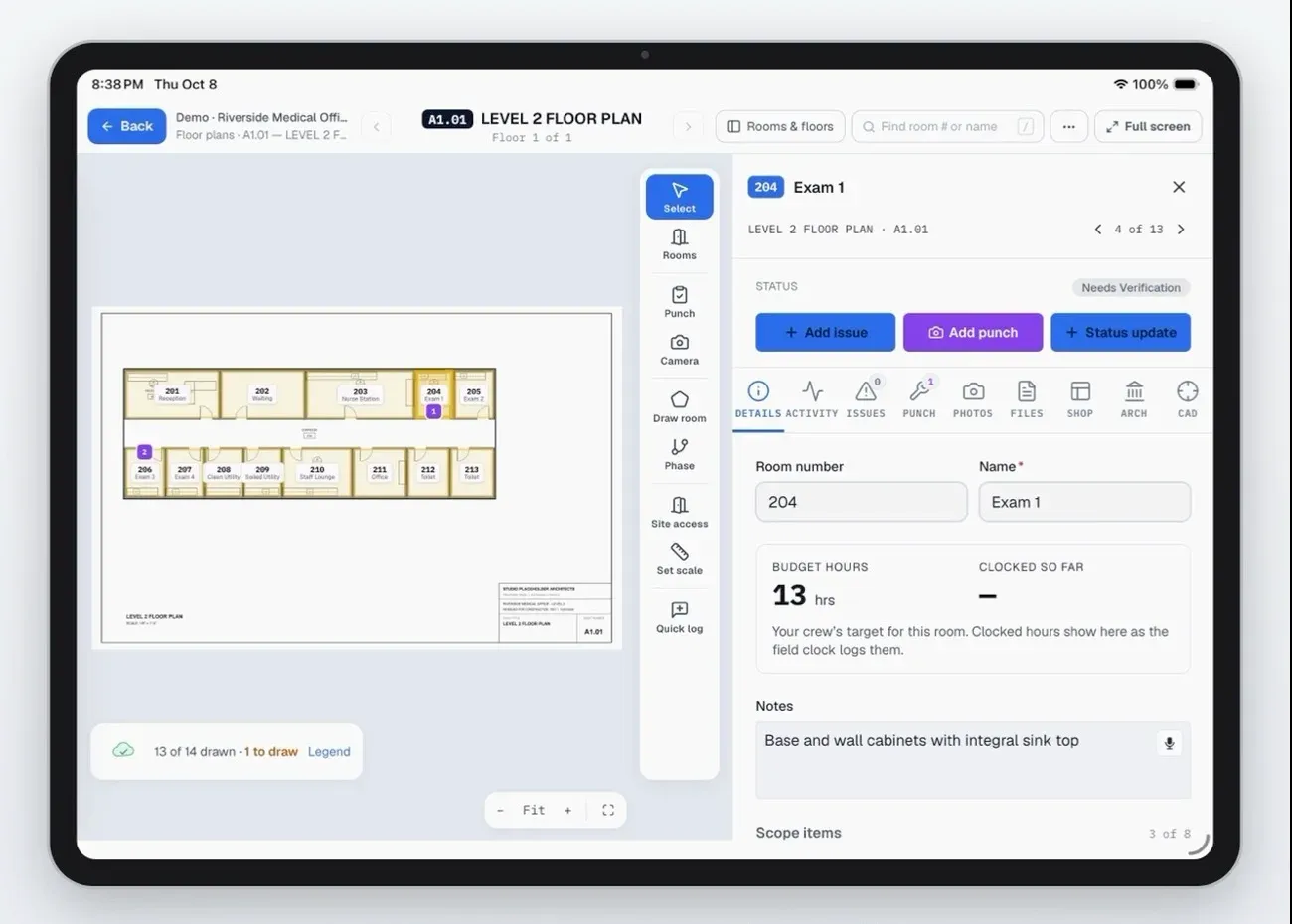
Open a room and its shop, work-order and architect sheets are already there.
Praxon matches the room numbers on each sheet to your room list, and opens the architect's sheet zoomed to the room.
Office · Floor plans
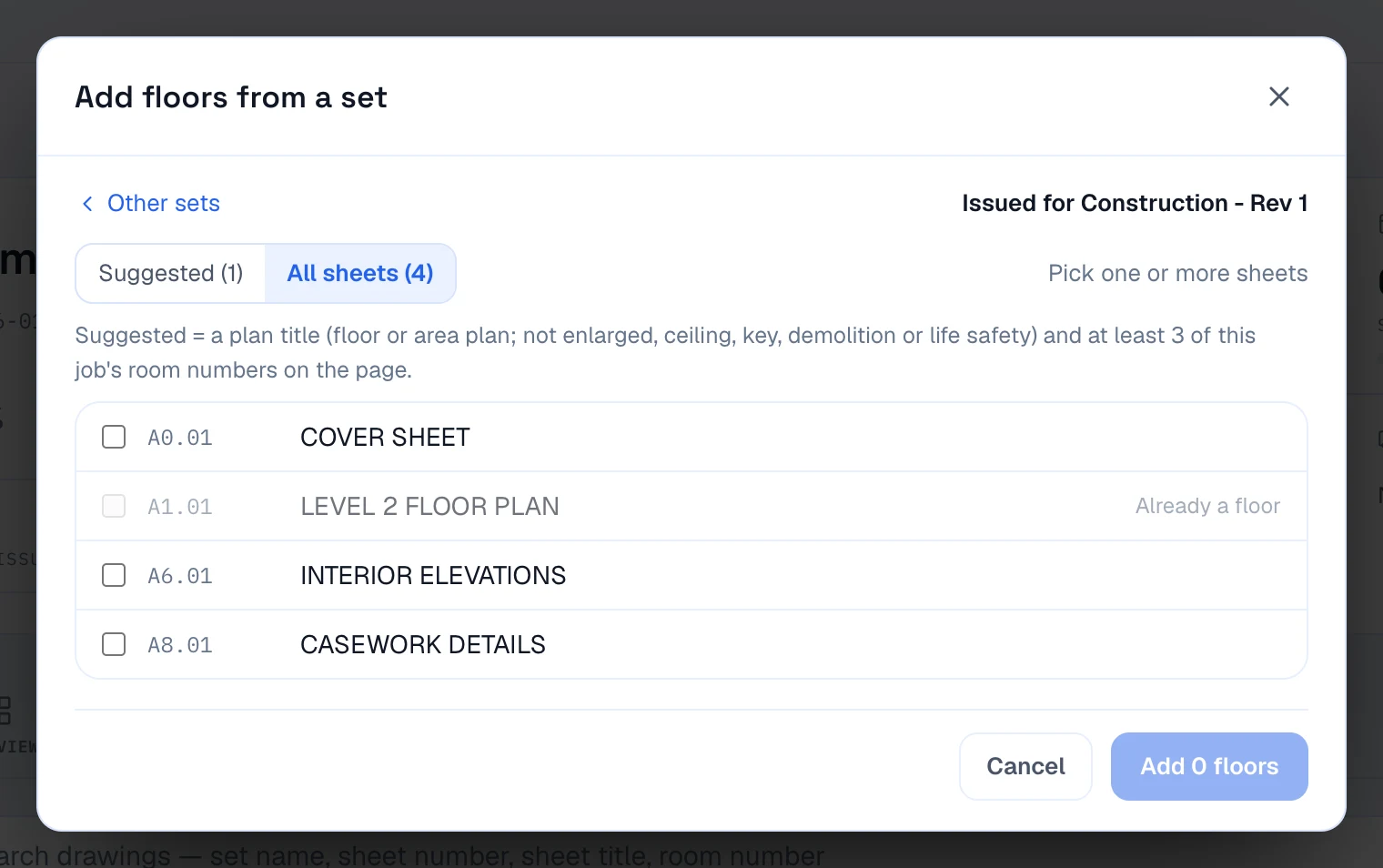
Pick the floor sheets from a set you already uploaded. Rooms carry over when it's revised.
When a newer revision is confirmed, the floor moves to it with its rooms, markups, punch pins and scale.
Everyone · Rooms
Status, budget, scopes, issues and photos, without leaving the plan.
Office · Drawing sets
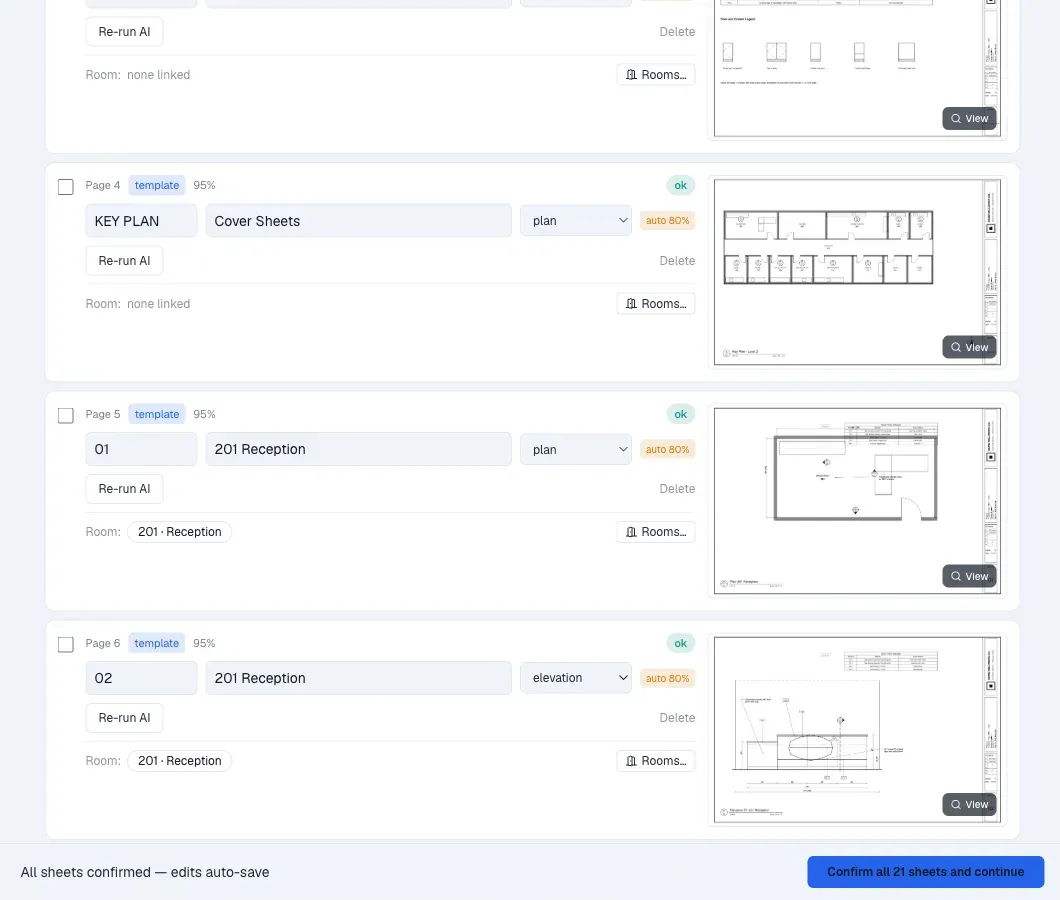
Upload a set and each sheet's number is read for you.
It reads the title block and the PDF's bookmarks. Anything it isn't sure of waits for you to check.
Everyone · Drawings
“See 3/A-501” is now a link that opens the sheet, zoomed to the detail.
Praxon reads the references on each sheet. If more than one sheet could match, it asks instead of guessing.
Everyone · Drawings
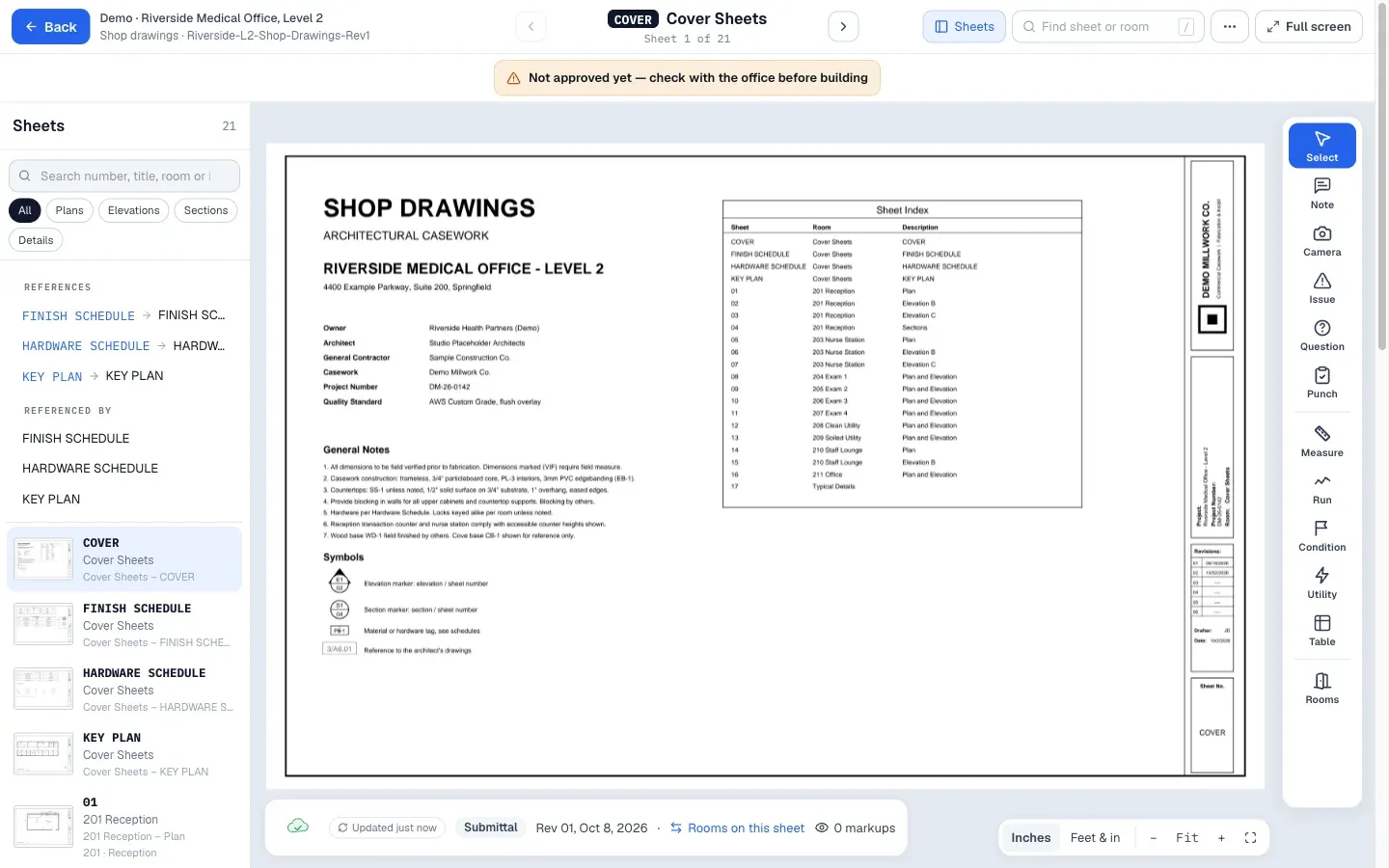
Every sheet list follows the PDF you uploaded, and the office can drag sheets to reorder.
Office · Office to field
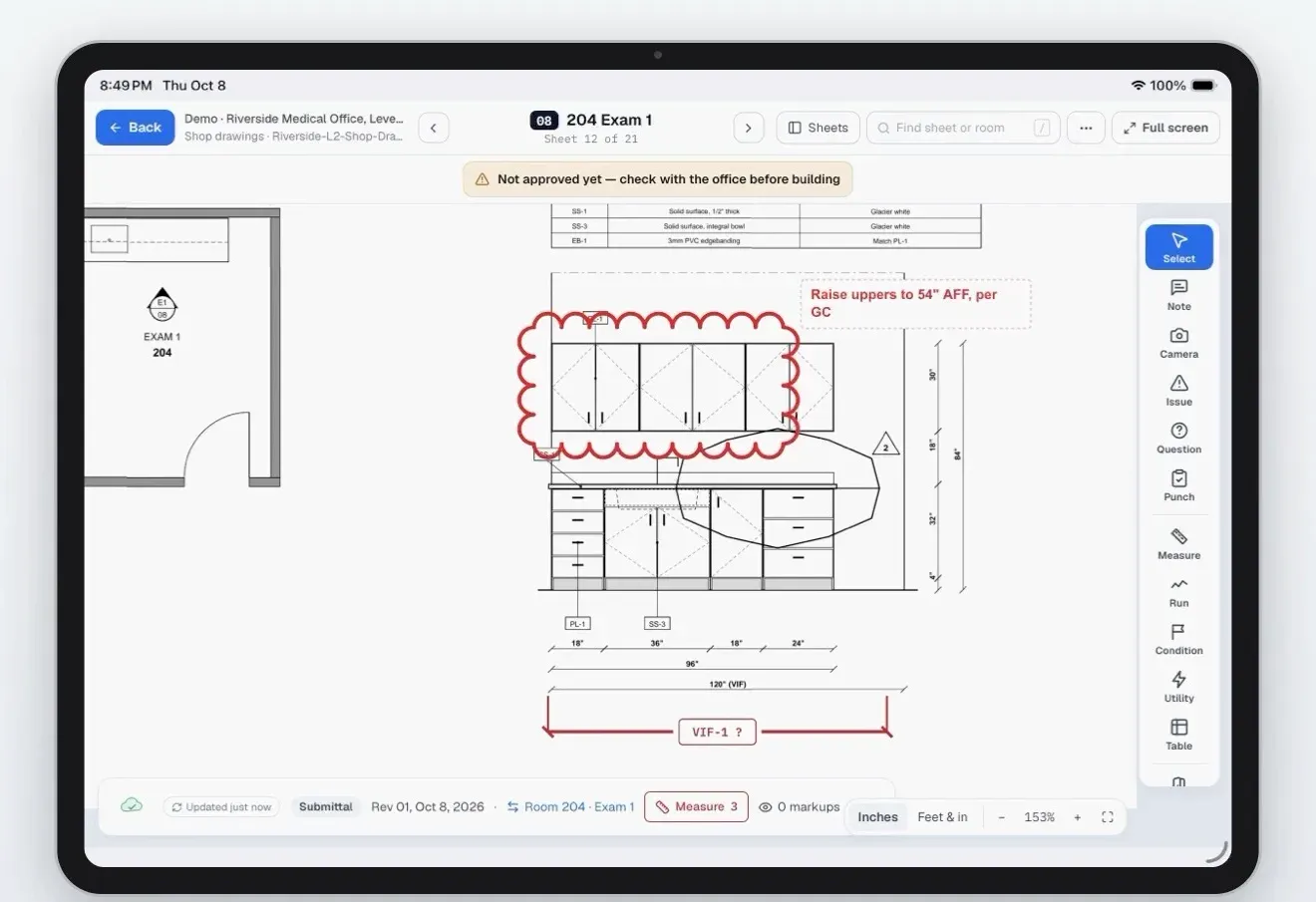
Clouds, arrows and notes from the office appear on the crew's sheet, with who and when.
Everyone · Field iPad
Crews see the drawings engineering released, with the approved set one tap away.
Office and field · Revisions
Praxon pairs the sure matches and asks you about the rest before the field sees anything.
A plan is never matched to an elevation, and nothing changes until you tap Update the field.
Everyone · iPhone and iPad
Tap the spot on the drawing, snap a photo, pick the type, and it's pinned.
Field · No signal
Punches and photos save on the device and send when you're back online.
Everyone · Measure mode
The office marks what to verify. The field walks each room and the tape fills in the numbers.
Readings come straight from a Bluetooth tape, and answers save with no signal on jobs saved to the device.
No updates match. Try another word, or show Everyone.
Detail loads as you zoom in, so small dimensions stay readable.
A replaced sheet opens as it was, with a link to the current one.
Draw walls, doors and windows, add dimensions, and issue a revision as a PDF.
Pick an Innergy job and Praxon builds the project with its rooms, hours and work orders.
Large sets upload straight to storage, resume where they stopped, and are slimmed without changing a page. Cover and index sheets stay out of room drawers. Sheet links are a thin ring on the bubble. "Report an issue" is in every drawing's menu.
Tables, utility stamps, curved walls and round columns on shop drawings; a run tool; units switch.
Status colors you can read the casework through. Rooms with history can't be deleted.
The app opens with no signal; saves never hang (they queue after 5 seconds); capture time is kept; Retry and Discard on stuck items.
Photos taken offline upload on reconnect; office photo reports by room, source and date.
Send a field issues report; create punch or issues from selected photos; numbered items.
Review your day, change activity or room, split a line; week view.
Take out and put back tools, load-a-van walk, add a vehicle from a VIN photo, rentals with due-back dates.
Drafts stay off the calendar; moving a committed block asks why; holidays and shutdowns are editable; calendar feeds.
Open Items replaces the work queue; Threads; operations board grid; reports you can send; roles, permissions and teams.